
Step-by-Step Guide to Easy TV Setup
- Quicktv Setup
- Jan 7
- 5 min read

Setting up a new TV can feel overwhelming, especially with the variety of options and technologies available today. Whether you're upgrading to a smart TV or simply replacing an old model, this guide will walk you through the process step-by-step. By the end, you’ll have your TV up and running smoothly, ready for your favorite shows and movies.

Choosing the Right Location
Before you even take the TV out of the box, you need to decide where it will go. Here are some factors to consider:
Viewing Distance: Ideally, you should sit at a distance that is 1.5 to 2.5 times the diagonal size of your TV. For example, if you have a 55-inch TV, your seating should be between 6.5 and 11.5 feet away.
Lighting: Avoid placing the TV in direct sunlight or in a spot where glare from windows will interfere with viewing. Consider blackout curtains or shades if necessary.
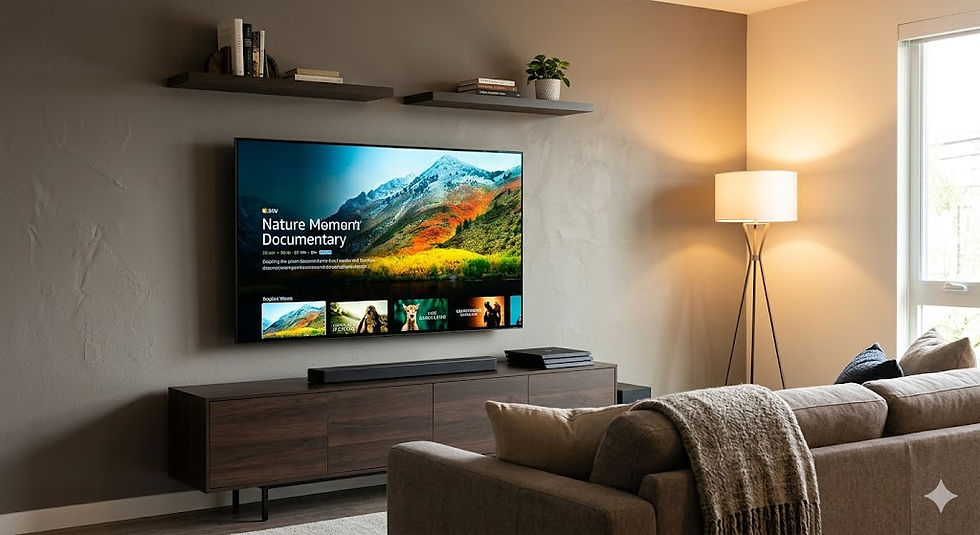
Wall Mount vs. Stand: Decide whether you want to mount the TV on the wall or use a stand. Wall mounting can save space and provide a clean look, while a stand can offer additional storage for devices.
Unboxing Your TV
Once you’ve chosen the perfect spot, it’s time to unbox your new TV. Here’s how to do it safely:
Gather Tools: You may need a screwdriver, a level, and possibly a stud finder if you’re mounting the TV.
Remove Packaging: Carefully remove the TV from the box, ensuring you don’t scratch the screen. It’s best to have someone help you lift it.
Check Contents: Make sure all components are included, such as the remote, power cable, and any necessary mounting hardware.
Connecting Your TV
Now that your TV is out of the box and in place, it’s time to connect it to power and other devices.
Power Connection
Plug in the TV: Connect the power cable to the TV and plug it into an outlet. Make sure the outlet is easily accessible for future use.
Connecting Devices
Next, connect any devices you plan to use with your TV, such as:
Cable or Satellite Box: Use an HDMI cable to connect your cable box to the TV. Most modern TVs have multiple HDMI ports.
Streaming Devices: If you have a streaming device like Roku, Apple TV, or Amazon Fire Stick, connect it using another HDMI port.
Sound System: If you have a soundbar or home theater system, connect it via HDMI ARC or optical cable for the best audio experience.
Setting Up Your TV
With everything connected, it’s time to power on your TV and go through the initial setup process.
Initial Power On
Turn on the TV: Use the remote to power on the TV. You should see a welcome screen.
Select Language: Follow the on-screen prompts to select your preferred language.
Network Connection
Most modern TVs require an internet connection for smart features. Here’s how to connect:
Wi-Fi Connection: Select your Wi-Fi network from the list and enter the password.
Wired Connection: If you prefer a wired connection, connect an Ethernet cable from your router to the TV.
Software Updates
After connecting to the internet, check for software updates. This ensures your TV has the latest features and security patches.
Navigate to Settings: Use the remote to go to the settings menu.
Select System Updates: Follow the prompts to check for and install any available updates.
Configuring Picture and Sound Settings
Now that your TV is set up, it’s time to adjust the picture and sound settings to your liking.
Picture Settings
Select Picture Mode: Most TVs come with preset picture modes like Standard, Movie, or Vivid. Choose one that suits your viewing preferences.
Adjust Brightness and Contrast: Fine-tune the brightness and contrast settings based on your room’s lighting.
Color Calibration: If you want to get more technical, consider using a calibration tool or app to ensure accurate colors.
Sound Settings
Select Audio Mode: Similar to picture modes, choose an audio mode that fits your content, such as Movie or Music.
Adjust Equalizer Settings: If your TV has an equalizer, adjust the settings to enhance bass or treble based on your preference.
Adding Streaming Services
If you have a smart TV, you can access various streaming services. Here’s how to add them:
Open the App Store: Navigate to the app store on your TV.
Search for Apps: Look for popular streaming services like Netflix, Hulu, or Disney+.
Download and Install: Select the app and follow the prompts to download and install it.
Log In: Open the app and log in with your account credentials.
Organizing Your Cables
A clean setup not only looks better but also makes it easier to manage your devices. Here are some tips for organizing your cables:
Cable Management Clips: Use clips to secure cables along the wall or furniture.
Cable Sleeves: Consider using cable sleeves to bundle multiple cables together for a neater appearance.
Labeling: If you have many devices, label each cable to easily identify which device it connects to.
Troubleshooting Common Issues
Even with a smooth setup, you may encounter some common issues. Here are solutions to a few frequent problems:
No Picture or Sound
Check Connections: Ensure all cables are securely connected.
Input Source: Make sure the TV is set to the correct input source (HDMI, AV, etc.).
Poor Picture Quality
Adjust Settings: Revisit the picture settings and adjust brightness, contrast, and sharpness.
Check Cable Quality: Ensure you are using high-quality HDMI cables, especially for 4K content.
Internet Connectivity Issues
Restart Router: Sometimes, simply restarting your router can resolve connectivity issues.
Check Wi-Fi Signal: Ensure your TV is within range of your Wi-Fi router. If not, consider using a Wi-Fi extender.
Final Touches
Once everything is set up and working, take a moment to personalize your TV experience:
Set Up Profiles: If your TV allows, create user profiles for different family members to customize their viewing preferences.
Explore Features: Familiarize yourself with additional features like voice control, screen mirroring, or gaming modes.
Enjoy Your TV: Now that your TV is set up, grab some snacks, get comfortable, and enjoy your favorite shows and movies!
Summary
Setting up a new TV doesn’t have to be a daunting task. By following this step-by-step guide, you can ensure a smooth installation process. From choosing the right location to connecting devices and personalizing settings, each step is crucial for an optimal viewing experience.
Now that you’re equipped with the knowledge to set up your TV easily, it’s time to enjoy your entertainment. Happy watching!


Comments